
In the last week or so I’ve tutored several students whose key stumbling block with SketchUp was the Move tool. To a person, they were finding it difficult to accurately move elements of their drawings around and place them where they wanted them. The Move tool really isn’t that difficult once you get the hang of a few key things.
First, although you can grab an entity anywhere with Move tool, things work out better if you grab them by logical points such as corners or midpoints on edges. When I’m talking to my students about this I use an analogy of chain gate. Closing the gate involves hanging the end link of the chain on a hook on the fence post. While you could grab the chain at its middle, it probably isn’t the best place if you are trying to get that end link on the hook. It makes more sense to grab the chain by the end. In the same way, grab entities in SketchUp by a point that will correspond to a point in the model.
Second, take advantage of SketchUp’s inferencing when you can. Let SketchUp help you with the move operation.
Third, lock the move direction when it makes sense. You can use the cursor keys to lock the direction. Use the up and down arrows to lock on the blue direction, left arrow for green and right arrow for red. I prefer to use the Shift key to lock the direction instead. My left index finger tends to hover over the Shift and Ctrl keys and it’s the same key for any direction. You can also lock the move direction while following an off-axis line using Shift.
Some time ago I did a demo video on the Move tool. You can see it here.
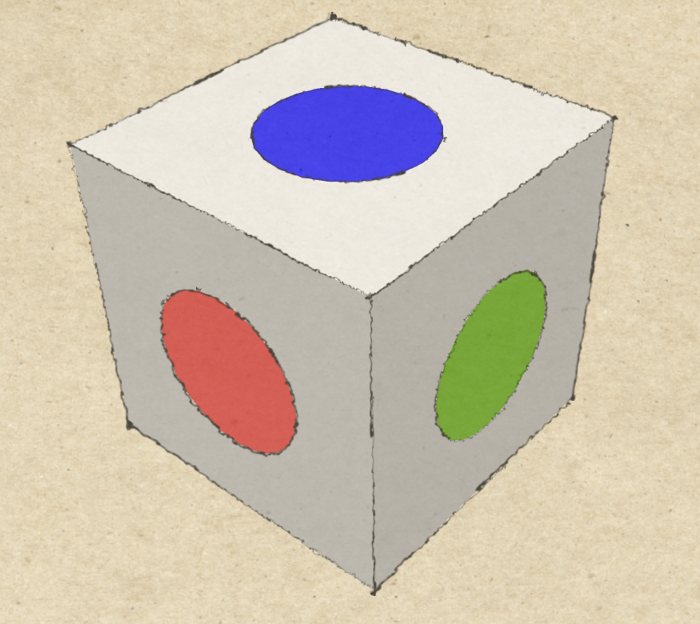
I made up a simple exercise file. the video below shows how I did each excercise in real time. If you want to give it a try you can download it here or you can type DCB move exercise into the search line of the Components browser in SketchUp.

















Comments
Dear David
With great respect, you are wrong, the Move Tool IS difficult, it is FAR from intuitive. AND yes users of freeware have to adapt to it.
Your explantations were excellent and revealed the inherent difficulty of moving 3D objects which have not been (or cannot be) "isolated" when we want to move them. That would be the solution, app programmers. If I see a .jpg in a WORD file, I can click on it and move it to where I want it. )Ican ALSO work on it as a .jpg file. THis shold be app'd when I click on an object that I want to Move.
Hughie, I guess we can agree to disagree on this point. I don't believe I am wrong at all. I've never found the Move tool anything but intuitive.
Dave,
I would tend to concur with Hughie. As a high school shop teacher I find it takes the kids plenty of practice to find the "right" ways to move items. Key among them is the concept of grouping things into components--something you intuitively know but the novice wouldn't catch.
This is my first reading of your blog, so I will look through it some more looking for how you suggest moving things precisely. EX. once a design for a table has been made, what are your suggestions for lengthening it to an exact finished dimension; or taking a complex extrusion and altering the pattern after the extrusion. I have my 'tricks' but have always felt there must be better ways to alter final designs.
Steve
Steve, I think the basic keys to working efficiently in SketchUp are learning to navigate in the 3D space using the various inferencing tools for both drawing and manipulating the entities once they are created and understanding the sticky nature of geometry. Both of these are are first lesson sorts of things in the SketchUp training course.
As to your questions about modifying a project, what you do depends upon how the model was created. You might take a look at Modifying a Model https://www.finewoodworking.com/item/23220/modifying-a-model Although not intended as basic tutorials you might also look at the videos here: https://www.finewoodworking.com/item/22911/a-fern-stand-demonstrating-my-drawing-process and here: https://www.finewoodworking.com/item/24328/jeffersons-bookstand-another-workflow-example
I'd be happy to talk with you if you'd like. You could send me an e-mail. Click on my name at the end of the blog post to do that.
-Dave
@Dave,
The point that @niceguystrom makes regarding components is, without a doubt, the solution to @Hughie's difficulties.
Components, components, components.
Converting everything into components early and often is the (relatively) unintuitive part of SketchUp, that makes all of the rest of SketchUp much, much more intuitive.
Have I made myself clear? It's components, components, components.
-Steve
P.S. In case anyone missed it: Components, components, components.
Steve, why are you whispering? ;) Yes, you are likely correct. This is a fundamental concept in SkethUp. If you aren't using components or groups in Sketchup, you will create all sorts of problems for yourself.
Dave
Excellent tutorial, thank you. I woulda muddled through, but learned a coupla important things watching your tutorial video (e.g., didn't realize the Move tool had Rotate capability built-in!).
Thanks again, videos like this are a real service to the community.
Log in or create an account to post a comment.
Sign up Log in