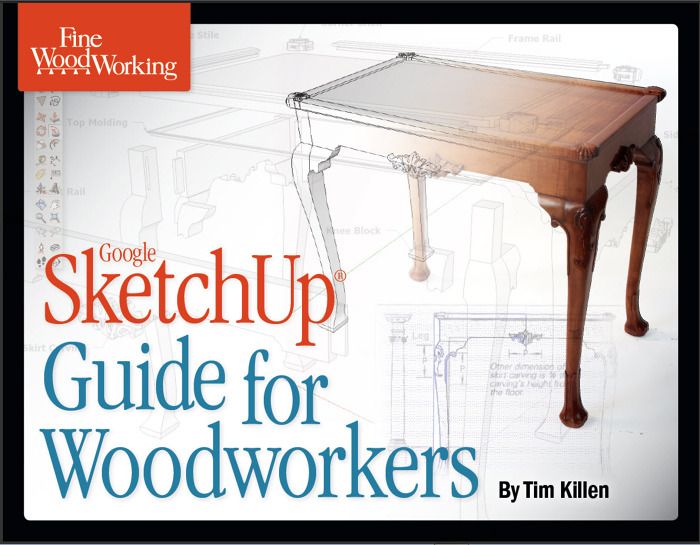
Yesterday Fine Woodworking launched my new book, “SketchUp Guide for Woodworkers”. See the link into the Taunton Store here.
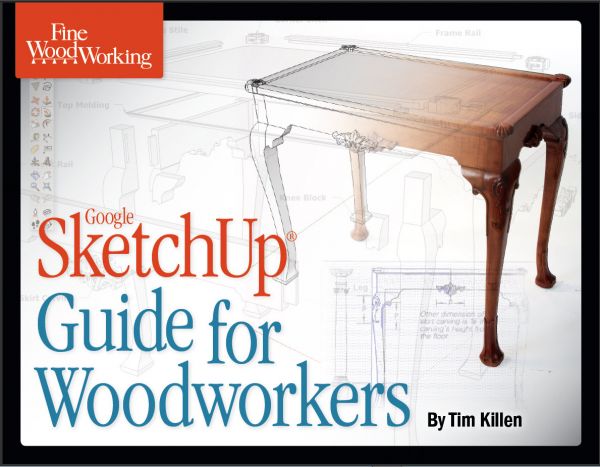
An e-book in PDF format, the first four chapters get you started with setup information and tips on using the basic SketchUp tools. Then it moves ahead with step-by-step exercises in modeling woodworking features such as joinery, moldings, turnings, and more complex components such as drawers and paneled doors. These exercises are demonstrated on a variety of furniture types and styles including classic period tables, workbench, Windsor chairs, stools, cupboard, blanket chest, highboy, and Maloof rocker.
Often I’m asked how to start a drawing in SketchUp, and I’ve provided helpful guidance for this issue. Another chapter shows how to use imported pictures to accelerate the initial “building” of a model – a powerful kick-start to your project.
And of course I’ve included chapters on organizing your SketchUp models for producing effective and accurate drawing documentation. The includes tools for creating full-size templates used in marking out lumber in the shop – another powerful feature.
While this Design. Click. Build. blog has provided much information, it has lacked an index and a way of finding answers to specific problems. The book finally helps solve this problem with a comprehensive index.
I hope you enjoy this book and find it helpful for starting and advancing your SketchUp skills. The results will show up in higher quality and capability of your shop work.
Tim

















Comments
Tim:
I download your ebook, and it looks great. However, when I got to chapter 3 I could not find the download for the Connecticut Stool. Could you help me with this.
Thanks,
Frank
Frank, I have contacted Fine Woodworking staff to take care of this issue. Should be an answer tomorrow. The Connecticut Stool should be a part of the download of the book.
Thanks for the comment,
Tim
Hi Tim,
Just been reading my newly downloaded ebook. This is the book that I've been wishing for ever since I started trying (and failing) to learn SketchUp. Even with a quick flick-through, things that have been puzzeling me have become clearer. I can't wait to get home tonight and get cracking.
Thanks,
Jon
Hi Frank T, Thanks for the info about the missing file. Sorry about the inconvenience. The files are correct in our online store now.
Anyone who purchased the book will get an email with any missing information.
If anyone has additional questions or concerns, follow up with our customer service department: Email [email protected] or Phone: 800-477-8727 9am-5pm ET Mon-Fri.
There are real and very nice people there who will be happy to help you.
Thanks, Gina, FineWoodworking.com
Hi, I just re-downloaded the file and it does contain the Connecticut Stool now.
Thanks for the quick fix.
I've been using SketchUp heavily in both my residential construction and cabinet business for about four years now. Like Tim, and thanks to SketchUp, I rarely start a project, or walk into the shop, without a clear understanding of what each step of the fabrication process is going to entail, all gained through the use of SketchUp as a woodworking design and shop drawing tool.
I recently purchased this ebook and believe it will be of invaluable benefit to both the neophyte and accomplished SketchUp user. AAMOF, along with SU on my laptop, the pdf file is now loaded on my smartphone for instant reference in the field and shop.
No financial interest, or otherwise, in this book ... simply an unsolicited kudos for a job well done!
Thanks, Tim ...
Just purchased your ebook Tim. Great stuff here. Thank you for taking the time to compile and publish it.
Now to see how I can improve my SketchUp skills
Are there plans for Taunton to publish this as a book?
To ckm: there are no near term plans to make hard copy printed books.
Tim
is Sketchup suitable to produce dxf files?
Thans
Nico
Nico, you can export DXF files with the pro version of SketchUp.
Downloaded the book at went through the first seven chapters. This book is excellent and exactly what I was looking for to get started with SketchUp. I highly recommend it.
I ran into a few issues with Chapter 7 and I figured I would post them here. It certainly could be me misreading or misunderstanding what was intended but if it helps somebody else I figure posting it here can't hurt.
Page 31, Step 4, first paragraph - I think there is a missing instruction to select and edit the component on the Top? Overall, this paragraph and the next one were very confusing. I got it eventually but it is a bit awkward.
Page 32, Figure 8 - missing an instruction to draw a tape measure line at the midpoint of the side piece.
Page 32, Step 9 - missing instruction to create component Front Skirt.
Page 34, Step 12 - second paragraph should really be Step 13 (creating the dadoes in the bottom and top), it made it easy to miss that second paragraph when working through the lesson.
Page 35, Step 16 - should say to select and edit the components (top and side) instead of simply select.
Hello Tim,
I have just purchased your e-Book and am hardly studying it to get the most out of Sketchup. It looks very promising.
I'm using ver 8 on a Mac and found a difference with the e-book. It concerns the "Window" menu and "Materials" sub-menu: when i open it i get the "color selection" pop-up window; the latter can not be minimized like the other ones as it contains the three "red-yellow-green" buttons of Mac applications and does not react on clicking on the top window bar. Is that a Window-Mac difference or a bug?
Thank you
Richard
To ScottSh: I'm impressed that you've gotten through Chapter 7 and the building of the small magazine rack. Thank you for the comments and here are my responses:
Page 31: You are right that an instruction should be included to select and edit the Top component. Otherwise the reader is not clear whether I'm starting with the Top or the Side.
Page 32, Figure 8: I think the instruction to draw a guideline at the centerline is included in Note 1. on the figure (last sentence)
Page 32, Step 9: On occasion I may not specifically state an instruction to "make a component", or "edit a component". But you are right that the Front Skirt needs to be made a component.
Page 34, Step 12: OK, I see your point, however all the information is there.
Page 35, Step 16: Again, you are right that you have to pick "Edit Component" - just selecting is not enough. I may at times not be that specific in the text, especially in later chapters.
Thanks again,
Tim
To Papynouche: I don't have a Mac readily available to check right away, but I don't think this is a bug, rather a difference between the Mac and a Windows machine.
Tim
Hi Papynouche:
When in doubt, for technical questions re: this book contact our customer service department: Email [email protected] or Phone: 800-477-8727 9am-5pm ET Mon-Fri
Thanks, Gina, FineWoodworking.com
Thanks Tim, I did in fact miss that statement about the centerline despite reading it several times .
On Page 49, figure 16, I believe the tenon length should be 11/16" and not 1-1/16" as it says.
On Page 50, Step 19, I don't believe you want to mortise the legs for the upper front stretcher until you make the back legs unique.
Still having a great time learning! Thanks!
To ScottSh: Again your comments are valid. The mortises in the back legs are different than those in the front legs. Therefore at some point you need to make the back legs unique components from the front ones. I would wait to do this until the chamfers are made, but obviously before the mortises.
Thanks again....
Tim
To Killenwood and GEIde: thank you for your answer; i'll try Sketchup on Windows as well.
To Papynouche: Regarding the Materials browser on Mac. The Materials browser is not really a SketchUp browser. It is actually part of the Mac OS. The fact that it cannot be minimized like the other browsers is not due to a bug. Apple just didn't design it to have the same behavior that @Last/Google designed into the SketchUp browsers.
-Dave
The link in the post does not appear to work any longer (it just goes to the main Taunton Store home page), and I can't find the book in the Taunton Store. Where can I buy this eBook now?
Hi cpweirup, Apologies for the inconvenience. The book was unavailable earlier today due to some technical problems due to the relaunch of our online store.
It's available again now:
http://www.tauntonstore.com/sketchup-guide-for-woodworkers-tim-killen-ebook-077846.html
Sorry again for the inconvenience, Gina, FineWoodworking.com
When using Follow Me to create the bevel on the bottom of the drawer for the post table (page 62, step 55/56) I was unable to get SketchUp v8 (8.0.3117) to use the Follow Me tool with the trapezoid shape as a component and follow the preselected line. I had to Explode the shape first, then it would Follow Me. I couldn't figure out a way to preselect the line, then Edit the component and use Follow Me - it always lost track of the preselected path.
Can you use Follow Me with a component in preselect mode?
To ScottSh: In version 7, you could have the path separate from the component of the shaped face for Follow Me. You could select the path, then pick the Follow Me Tool, hover over the component shape face, right click, pick Edit Component, and click the Follow Me on the face. This doesn't work in version 8. The path and the shape must be in the same "context". You were right to explode the component - that is one way to tackle the problem. Or another way, is to make the path a part of the component.
When I found this issue, I let Google know of the change. I don't know if they will go back to the way Follow Me worked in previous versions.
Tim
Your book popped up on my screen on the perfect day. I was looking for this very type book to help me. I need to learn CAD and this is the perfect book for me. I downloaded the book Monday morning and quickly worked through the problems thinking, this is great! Now I am trying the magazine rack and no matter what I do, I can't get the push pull tool to work on the dado between the side and the top. Online Google help has been no help. I have tried it over and over. I don't know if you are into answering little flea-bite questions from addled readers.....When I move the push pull tool over the top, it gets a little "no" symbol-circle with a diagonal line through it.
BuckySawtooth: I suspect that the Top component has not been "opened" for editing. Double click with the Select Tool on the Top to place the Top in Edit mode, then pick the Push/Pull Tool and click it on the face of the groove shape.
You can also get into the Edit mode of the Component by clicking on the Top once with the Select Tool, then right clicking the mouse and selecting Edit Component from the pop up list.
There is a change in version 8 with the Push/Pull Tool. In previous versions, you could select the Push/Pull Tool and right click the mouse on the component and pick Edit Component from the pop up list. This no longer works in version 8, and Google tells me they will be fixing this to work like the old days.
Tim
Tim, I just purchased your ebook and have learned so much in the first six chapters I'm thrilled!!! However, like ScottSh, I too got stuck on step 4 in chapter seven. Unfortunately, unlike him, I was not able to work it out. I don't understand where I am to trace the lines "to form the tongue and shoulder..." and when I try and then use the push pull tool nothing is highlighted and the tool indicates it can't be used (a circle with a slash). What am I doing wrong???? Hope you can help me. Thanks Barb
Tim,
back again. After writing that last note, I read your response to ScottSh and selected the top and edit component. I fiddled a bit (like Scott?) and did figure it out. I've been "designing" with Sketchup for some time but, your book so far has made it a much more pleasant experience. And that's an understatement!!!!!
I'm sure I'll be back. Thanks Tim. Barb
To timberlady..... glad you figured it out. Don't hesitate to let me know any difficulties here on the blog.
Tim
Hello again Tim,
I have another question. Before I bought your book, I was attempting (without much luck) to design an L shaped computer desk in the Greene and Greene style. I was feeling confident enough after the first nine chapters to try again. Now the problem I'm having is, having constructed the post component and placing copies (there are 10, 8 in a row 20 inches apart (wide) & various distances lengthwise and the other 2 on the bottom of the L) I'm not sure how to orient them so they mirror each other. I know how to use the flip along function and can mirror the first four in the long row but do I have the next 2 mirror the second two, the final two mirror the third two and the short L two, who do they mirror? Hope I haven't confused you too much. I'd send you a copy of the drawing but I don't know how. Barb
To Timberlady: Please send your model to [email protected]
Tim
I can't get the guide line function to work with the Tape Measure Tool as indicated in your book. A line does not appear. I can create guide points, but not lines.Is there a special setting? Please provide a detailed instruction for this. I'm using version 8.
Thanks very much
John Myatt
London Canada
To myatt: the Tape Measure is a powerful Tool but can be confusing because of it's multiple functions. On page 17 of Chapter 4 I've provided the detailed instructions for these capabilities. To make a parallel guideline you need to click the Tape Measure Tool somewhere on an edge away from the endpoints or corners. If you click it on an endpoint you will get a guide point rather than the parallel line. Sometimes SketchUp will work off some inference which will also make it hard to get a parallel line. If you get inferences, then click somewhere else on the edge to avoid these.
Tim
Hello again Tim,
I have a question about the computer desk, but I think it will apply to almost any drawing. Several components have the same joinery but are different sizes. Is there any way to adapt a component so you don't have to do the same joinery all over again? One other question and it may be related. How is "make unique" different than exploding an existing component and making a new one? Thanks
Timberlady.
Timberlady, I hope you (and Tim) don't mind my reply.
There is no reason you can't or shouldn't modify an existing component to make a new one. At least if it saves you work and time.
Make Unique differs from exploding and making a new component in that it keeps the same component definition name and appends a number. The component's axes remain in the same place as the original and other parameters including layer association remain the same. Of course you can rename the component in the Entity Info box. If you explode a component and remake it, the component axes may be relocated if the component has been rotated or flipped. In addition, if you've associated the component with a different layer than the default layer, exploding the component will cause the geometry to be associated with that layer. Good practice when using layers is to leave geometry (faces and edges) on Layer 0 and only make layer associations for components/groups. Exploding the component and remaking it kind of counters that practice and you should make sure to change the entity's layer associations back to Layer 0.
My preference is to use Make Unique and then just edit the component definition name afterward.
To Timberlady: Good questions.... I recognize there are leg components for example that are similar but may differ in some details. For example, front legs on a table may have common mortises to the back legs. But in the end, there are differences that force you to make separate component definitions for the front vs. the back legs.
To avoid having to do redundant joint details on separate components, I do the common work first, then use this component to make the new separate component.
I use the "Make Unique" component feature when I'm in a hurry and doing something temporary. SketchUp quickly and automatically assigns a unique name to the new component (but it will be the old name with a suffix of #1 for example). You can then later edit the name of this component to the final desired name, if you want a permanent new component.
If I know a new component is required, I typically do the "explode" and re-create a new component. Then I can immediately assign the desired name for the new component.
As usual, there are multiple ways to achieve the same result.
Tim
I have the book and find it very useful and a good guide. I have a question about the horizontial toolbars discussed in chp3. It indicates we learned how to do this in chapter 2. I re-read chap 2 several times and could not find it anywhere.
Some of the buttons are Scan,Cross section, Assembly, and Explode, among others. What did I miss?
Thamks so much for writing the book.
Dennis C
To Denjamin: the tabs labeled Assembly, Scan, Othographic, Exploded, and other names are Scenes, not Toolbars. You will learn about Scenes later in the book. They are valuable for saving views of the model and it's components and are required to produce effective shop drawings.
Tim
Hello
Your e-book is fantastic but I've struck a problem when I attempt to use the follow me tool to create the bevel on the drawer bottom.I followed your instructions,made the bevel shape,made it a component etc,but when I hover the follow me tool over the shape,it won't work.However,if I don't make the shape a component ,it works fine.Problem is,It is more difficult to select the extruded shape to make it a component afterward,without moving the sides of the drawer bottom away.What am I doing wrong?
Hello,
Found my answer in the next chapter!!If you make the shape a component,you have to edit it before you draw the path in order for follow me to work.Easy when you know how!!!
Best software book I've ever come across.
Thanks again.
To KiwiPaul: glad you found the answer, that is to right click on the profile to Edit Component. For some reason, you could not do this in version 7. You had to have the path and the profile within the same context, that is both within the same component or both non- components. Version 8 corrected this error and now allows the path to be outside the definition of the profile component. But you have to remember to open the profile to edit mode after choosing the Follow Me Tool.
Tim
When orbiting in any of the scene tabs, the content of the all the other scenes come into view. It appears that each scene would also have to be made a layer so that their content can be hidden when orbiting within a scene. Is this correct? Really like your book!
@Robinwood,
You cannot make scenes into layers but you could associate layers with those components you don't want to see in specific scenes and turn those layers off as needed.
Tim:
I have been using Sketchup for about 6 months having learned it from online tutorials and Sketchup Forums and went through the book pretty quickly until chapter 7 where I have had a lot of difficulty. I am using Sketchup 8 for this work. From the comments here I see that others have had similar problems. In particular, beginning on page 34 in step 4, I was unable to create the tongue and groove joints in the top and side until I had physically separated them using the Move tool. I ran into this same problem in several places later on in the chapter. One idea that I have found useful is to make multiple layers with like components on the same layer. That way you can only have the parts that you are working on visible and the others invisible. For the magazine rack, ther would be a top, bottom, side, skirt and partition layer. Then you don't have to keep moving pieces around. The only drawback of this is that you have to be always aware of which layer you are drawing on.
Also on page 36 near the end of step 10 I was unable to carry out the rotation of the cutout as you suggest using the move tool as it would only let me rotate around the red axis. I had to use the Rotate tool to be able to rotate around the necessary green axis.
If you have any suggestions about what I might have done wrong in these cases, I would appreciate hearing them.
Thanks,
Steve
To Riffler: Your description of the difficulties sounds familiar, and leads me to suspecting that you don't have separate component definitions for the magazine rack pieces such as the Top and Side. If indeed these are independent components, then there will be no interference between them when editing.
I strongly recommend not using Layers as you have stated. This is risky and will make your modeling process very complicated and frustrating. Keep all your graphics on Layer 0.
If you send your model to me, I would be glad to identify the specific things to do for correcting these problems.
Also, if you haven't already done, read through past blogs, e.g.
https://www.finewoodworking.com/item/33040/the-most-often-frustrating-error
https://www.finewoodworking.com/item/32372/tongue-groove-joints-in-magazine-rack
Tim
[email protected]
To Riffler: you mentioned some trouble rotating the ogee shaped profile. No need for using the Rotate Tool here, the Move/Copy Tool will do the job. The profile needs to be a component or group for this to work. The rotation I believe is around the vertical blue axis. As described in the text, you need to orbit your camera view looking down on the top edge of the profile. Pick the Move/Copy Tool and hover over the top. Click your tool on one of the plus signs that will appear, then begin the rotation.
Tim
Tim:
Thank you for the clarification. I now can get the rotation to work. I will send you my model for comment on why I was unable to edit the components as you suggest in Chapter 7, step 4. I would prefer to use your method rather than creating many layers if I can understand how to make it work.
Steve
Tim:
I wanted to start a new string but don't see how to do it. Would that be the right thing to do or do you want this string to continue on with further questions? In any case I am running into a problem creating the elongated holes described in chapter 9, step 30 on page 54. You say in the text:
"When you copy the hole, you may see that the copy doesn’t appear to go through the frame component; all you will see is the outline of the hole. To fix that, zoom in very close to the hole and trace over a small part of the hole outline. You should then be able to click on the hole and eliminate the bogus face. Do the same on the opposite face of the frame component to clear the hole."
I have tried all variations I can think of but the hole does not appear to go through. It looks fine in x-ray view but not shaded. Can you clarify what needs to be done further?
Steve
Riffler: just continue comments here. There is no way to start a new thread.
On your problem, it is best for you to send me your file. Then I can see if there is a reason you are unable to remove that face. Make sure you have opened the component for editing. Then trace over one segment of the circle with the Line Tool. This will cause SketchUp to recognize the hole in the surface.
Tim
Tim:
I am having trouble with chapter 9 step 35 and associated figure 39 for the long tenons on the tabletop bread board ends. It appears to me that you are missing the dimensions of the width of the middle tenon and the right hand tenon as well as the space between the middle tenon and the right hand tenon. Am I missing something?
Steve
Riffler: I believe all the dimensins are there. Figure 41 shows the length of the middle tenon at 4-in. The tenons on the ends are equal and at 2 15/16 minus 1 1/16.
I've included a slight gap between the tenons and the mortises at the ends of the breadboard. This will allow some seasonal movement. I glue only on the center tenon. The outer ends of the breadboard are free to float with the weather.
Tim
Almost done with the magazine rack. I am unable to push back the stopped rabbets for the top and bottom. The partitions and sides were easy, but when I selected the push/pull icon all of the top turned blue. I am referencing step 16, page 35.
To motohiro
Congratulations on getting through the tongue and groove joints.
I suspect your problem on the rabbet in the Top has to do with not setting the Top component for editing. Before using the Line Tool over the guideline, make sure to set the Top component for edit.
If that doesn't work let me know.
Tim
Sorry, that did not work. Do you recommend that I start all over?
Motohiro:
Rather than guessing the problem, please send your file in email attachment.
Tim
frank T: Did you ever get a copy of the connecticut stool file for Sketchup? The same thing happened to me when I downloaded the ebook. Could you please forward a copy of that file to me?
I purchased the book through the Apple iBook store, and it didn't include the example file. Why don't you make a link available and put the file on Taunton's web site. Thanks. -- Steve L.
SteveL, I am traveling and contacted Taunton Press Customer Support regarding your problem with the download at Apple. I'm hoping they've resolved your problem.
Tim
To SLoughin: Steve, I would like to know if you have been helped with the .skp file. Taunton Customer Service was to have helped with this. If not, let me know by email, and I will get you the file.
Tim
Log in or create an account to post a comment.
Sign up Log in