
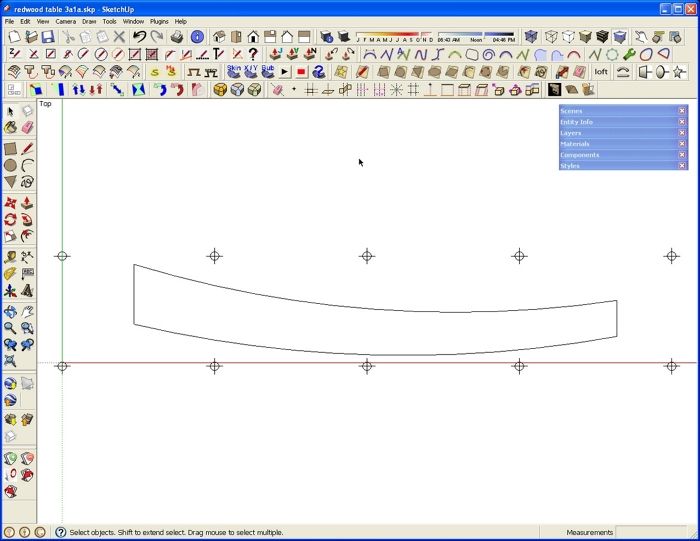
Recently I’ve fielded some questions about how to print templates that span several pages. Tim has written about this in past but here’s another go at it. Since I have the pro version of SketchUp, my first approach would be to use LayOut for making templates but it can certainly be accomplished directly from SketchUp.
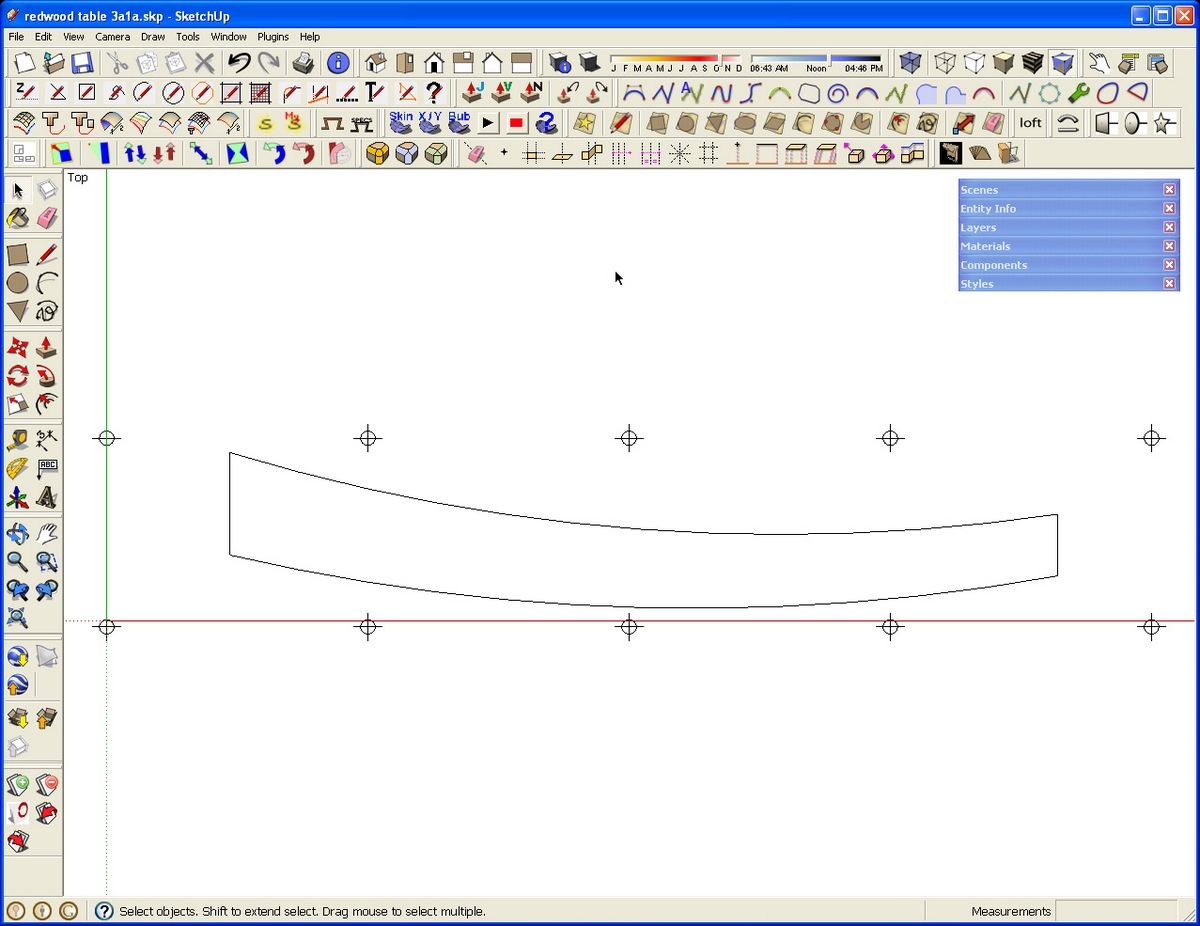
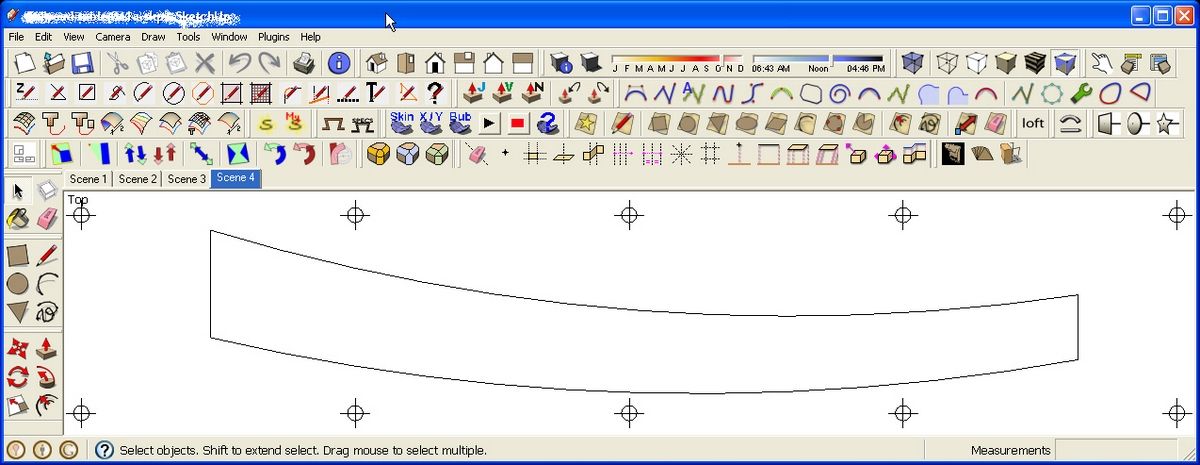
The first method involves printing directly from SketchUp. If the pattern is for something long and narrow, I orient the pattern so its long dimension runs across the screen. Set Camera to Parallel Projection and choose the Standard View that aligns with the face of the pattern. Next, reduce the size of the window so it is close to the same shape as the pattern. Use Zoom Extents to make the pattern fill the drawing window. On the PC, you’ll need to un-maximize the window to do that. If the button between _ and X in the upper right corner shows two overlapping squares, click on it. Then you can grab the lower right corner of the window and move it around to resize it.
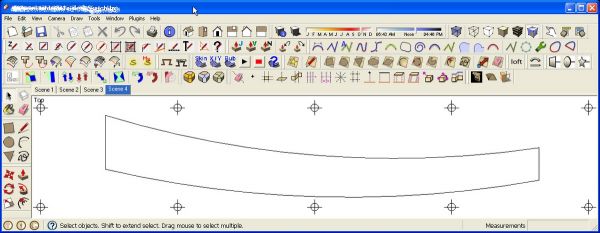
On the PC, it is likely that you’ll have to move or close some toolbars temporarily for this process. In the image above, note that I’ve also drawn in some registration marks to aid in aligning the printed template sheets.
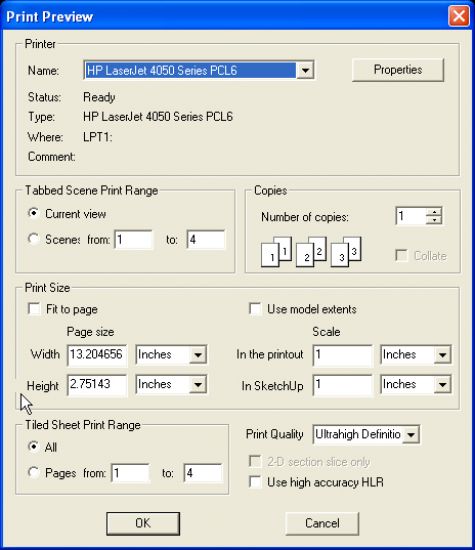
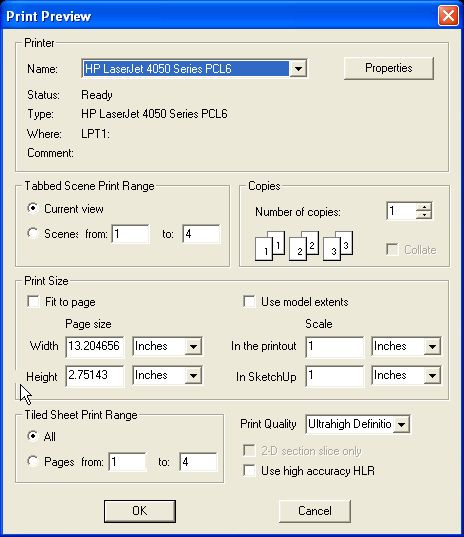
Next, open Print Preview. Click on the Options button and set the paper orientation as needed. In this case I set it to Landscape. Then uncheck the boxes for Fit to Page and Use Model Extents. Set Scale to a 1:1 ratio. You can check to see if the number of sheets required makes sense. In this case I get 4 sheets. You might have to go back and make small adjustments to the size of the drawing window to get the number of sheets to be right.
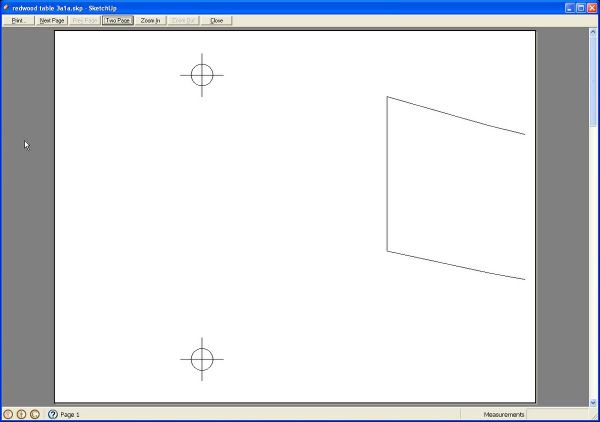
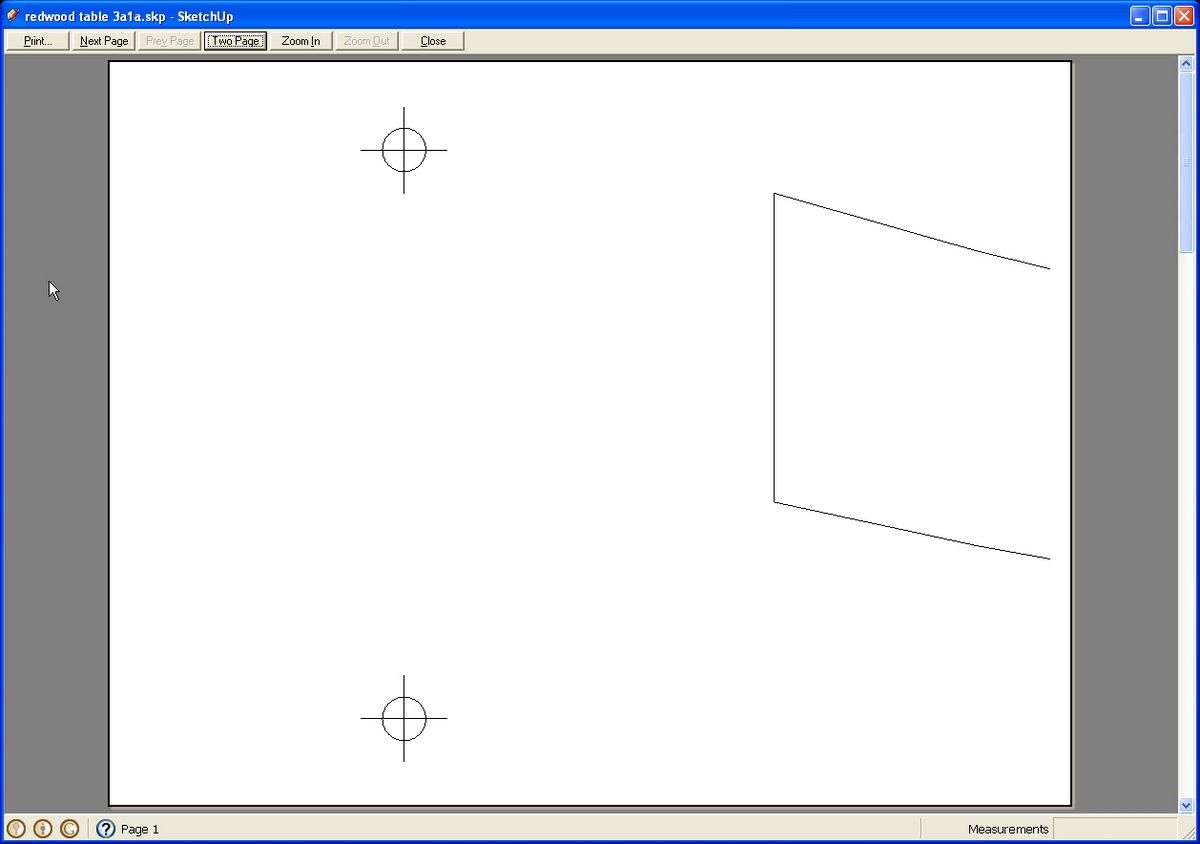
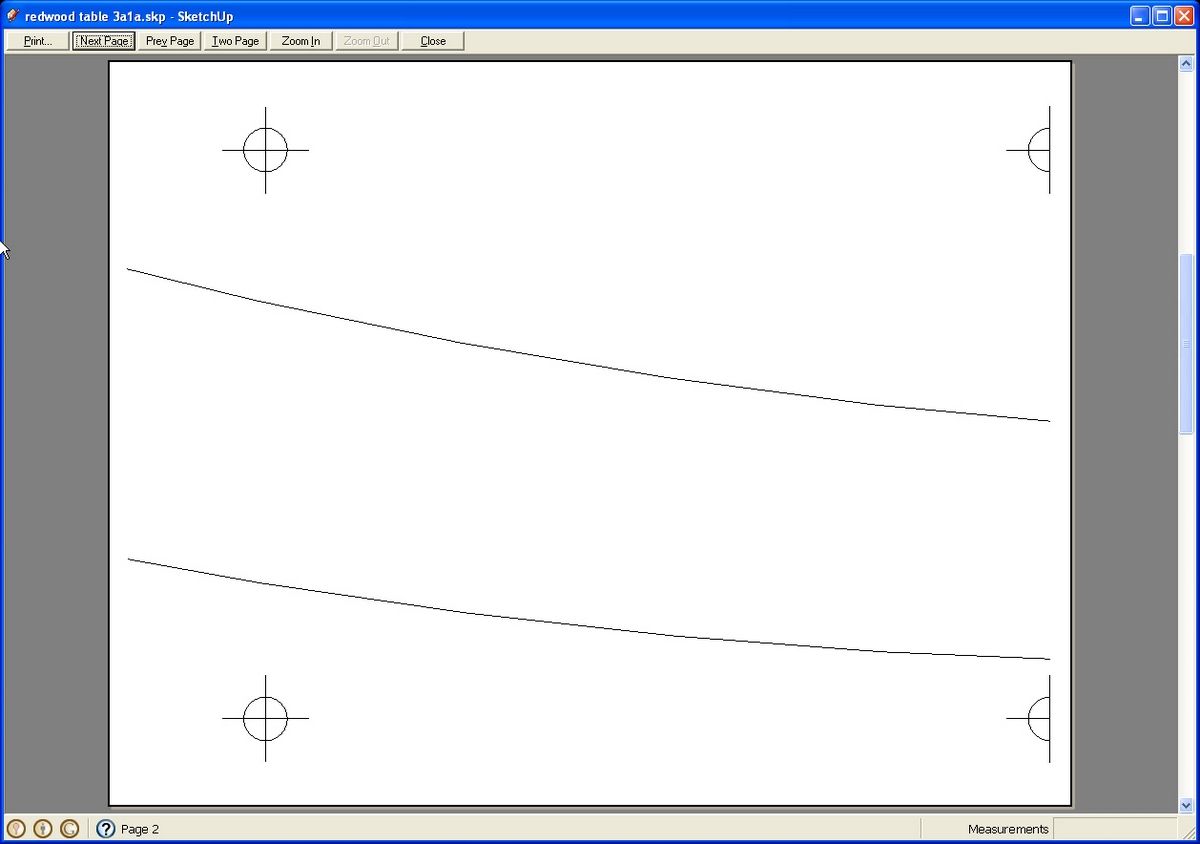
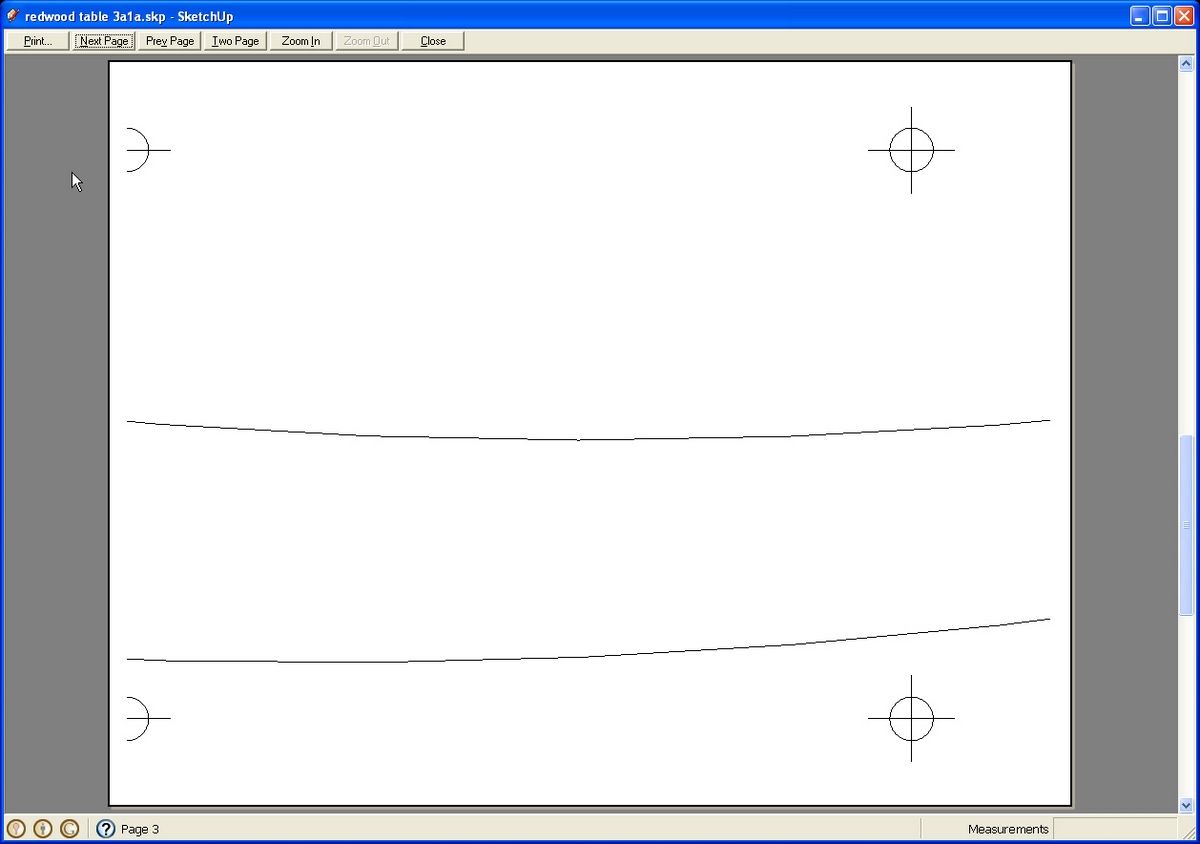
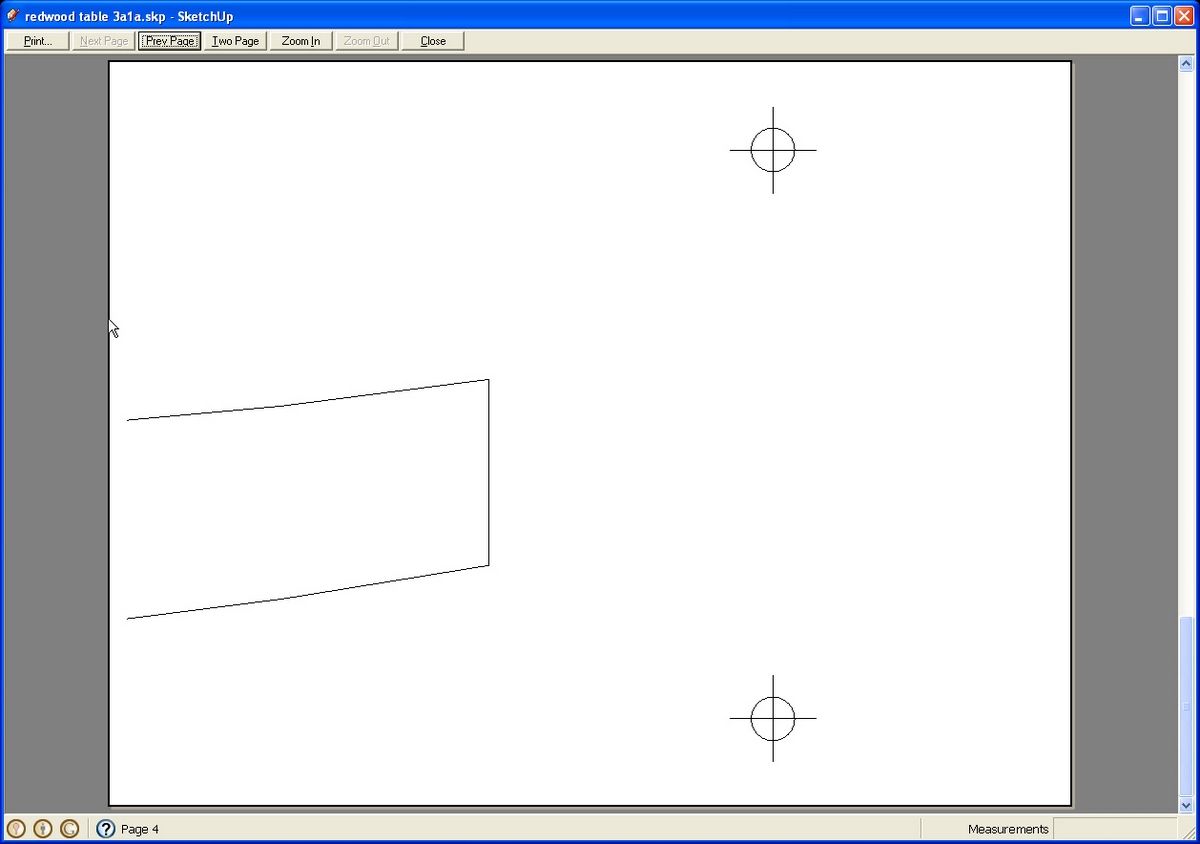
Here are the Print Preview windows. Notice that my registration marks aren’t perfectly aligned on the sheets but they are mostly usable as is. I could go back and rearrange some of the marks but I wanted to show you what can happen. It is possible to squeeze this pattern onto 3 sheets if the registration marks ware rearranged a bit.
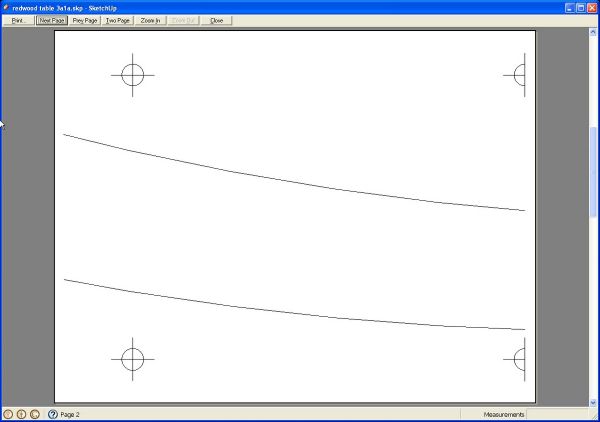
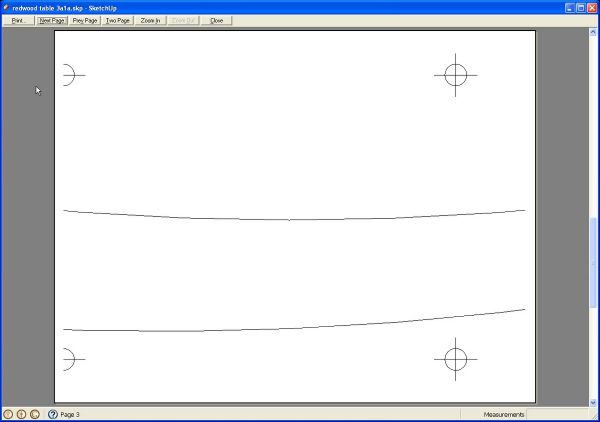
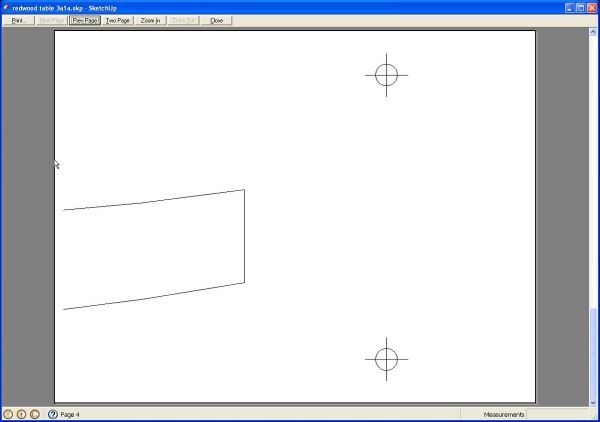
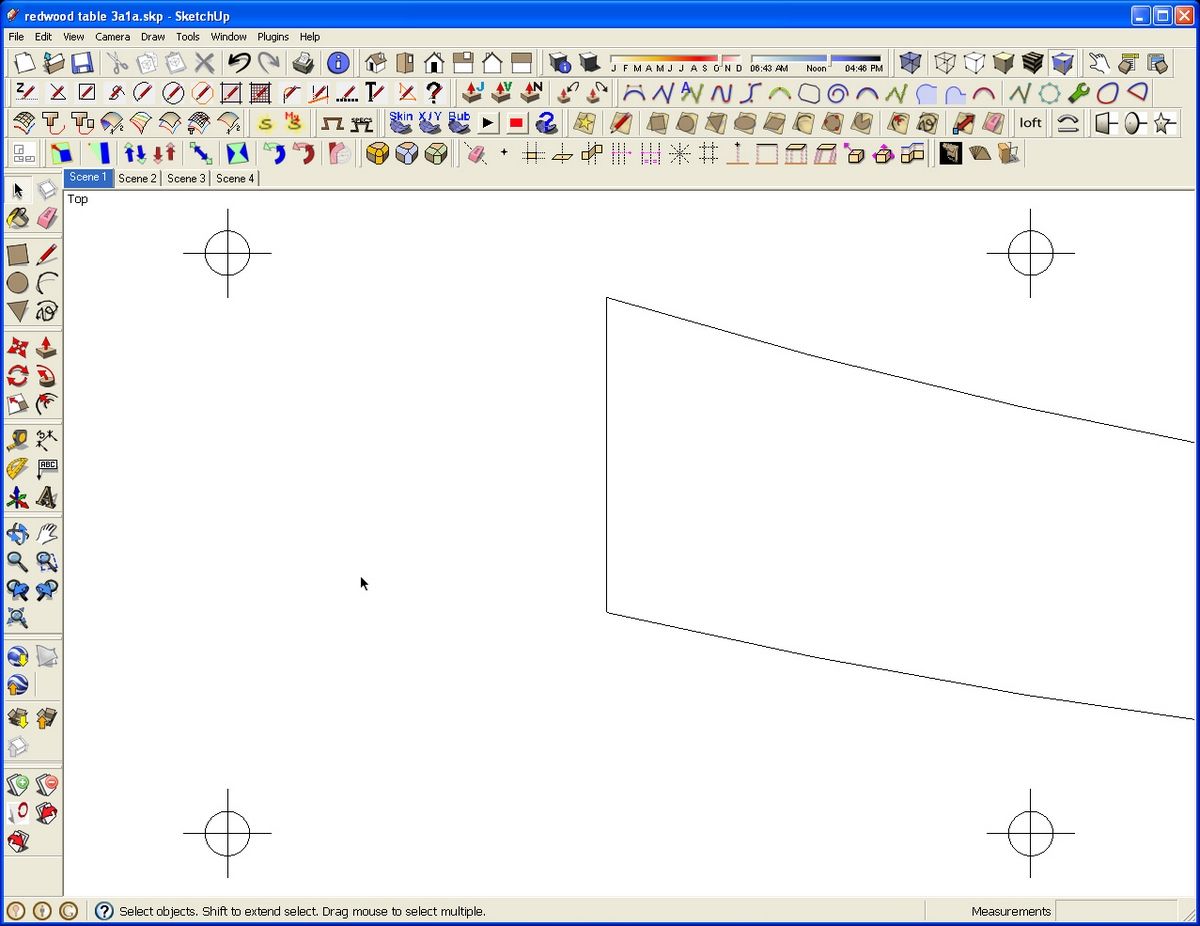
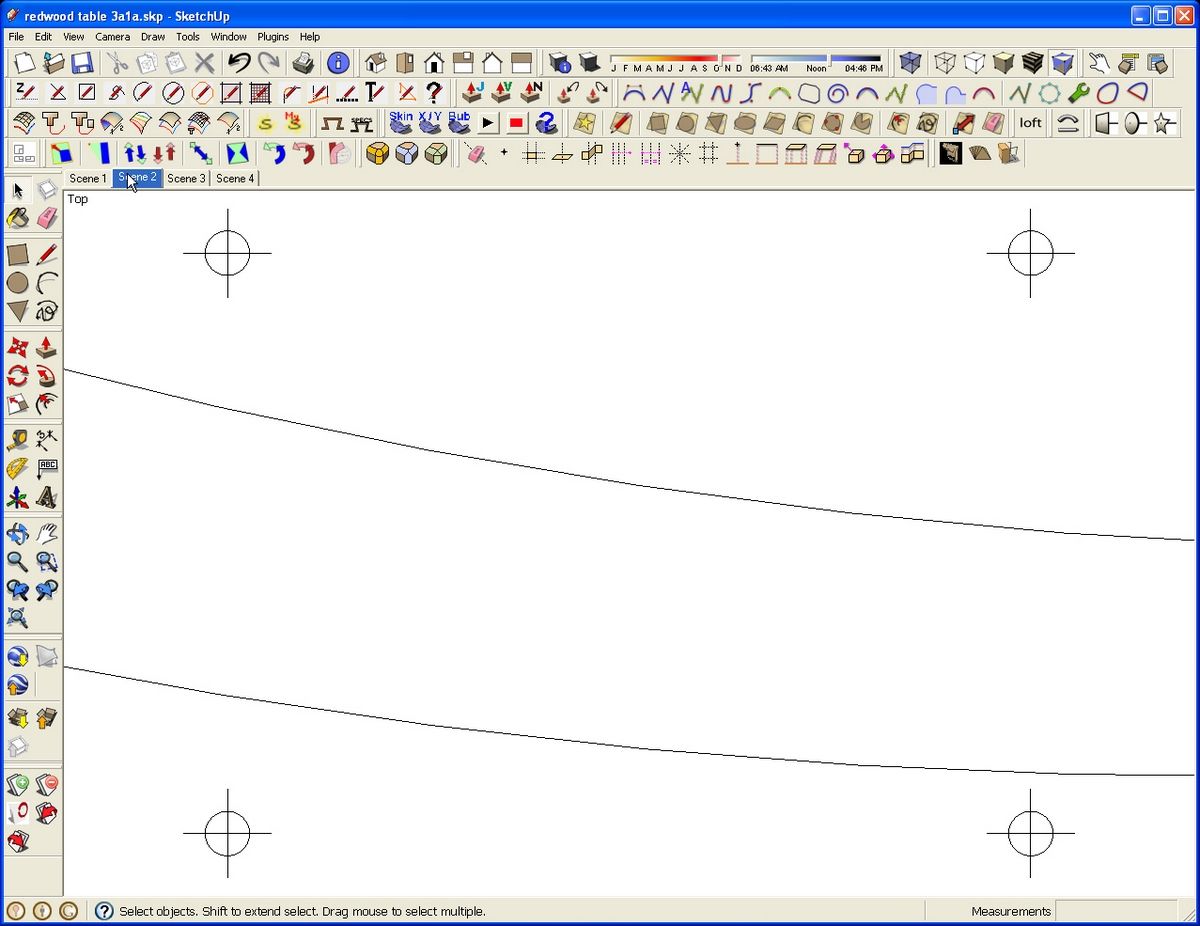
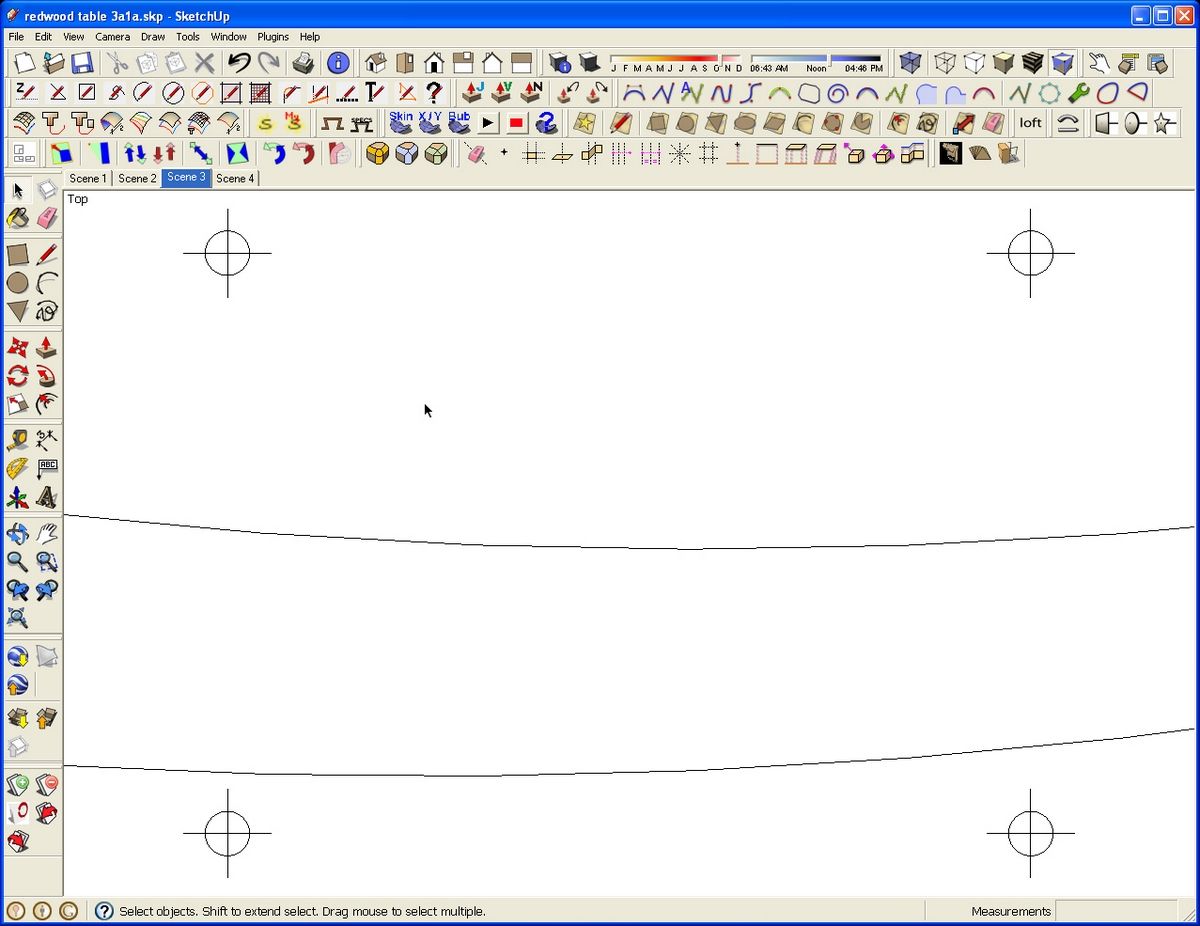
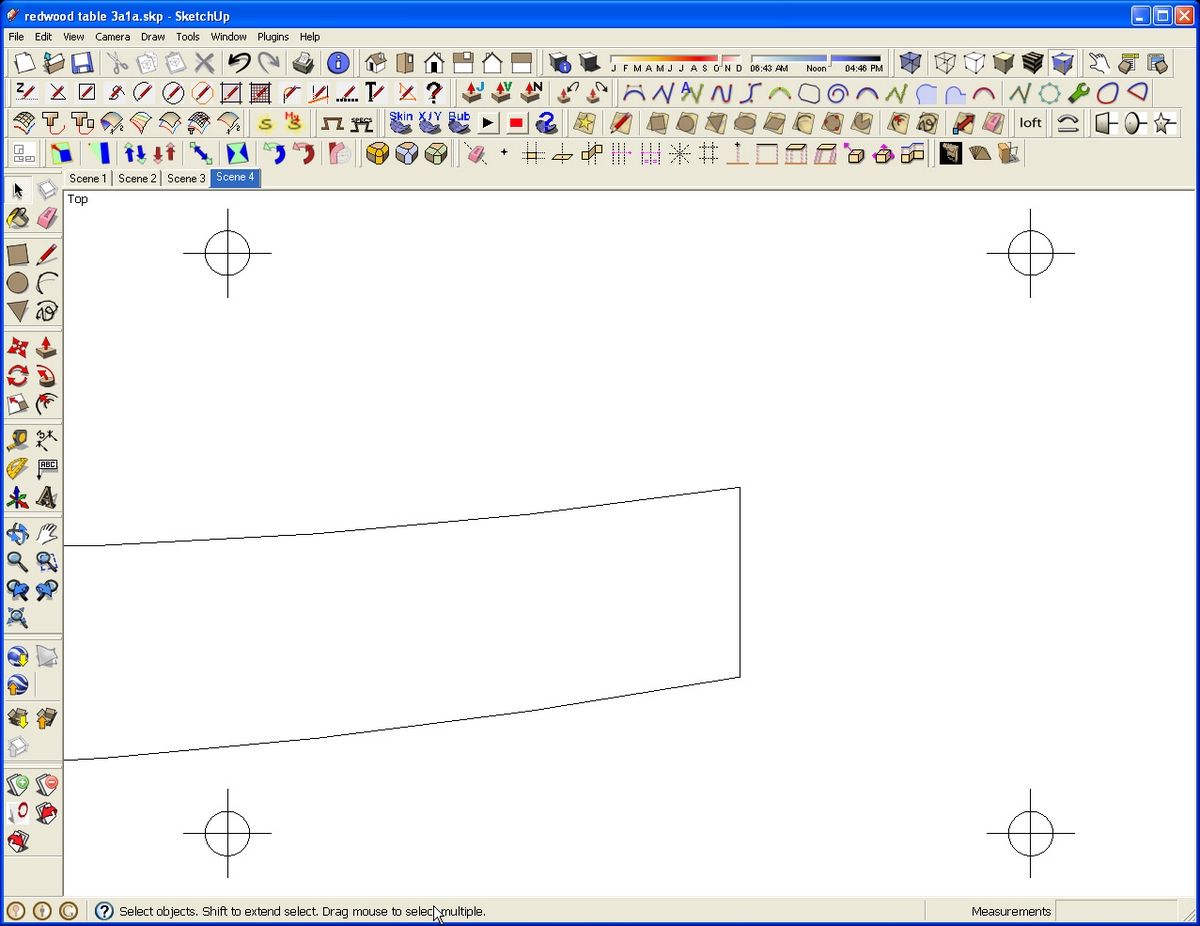
Another method which works for those SketchUp users who have the PDF export option is to create scenes that show parts of the model and export those scenes into a PDF file. After LayOut, this is my favored approach. It doesn’t require resizing the screen nor replacing toolbars.
So to start with, I created the registration marks around the template. In this example they are spaced horizontally on 9 in. centers and vertically on 6-1/2 in. centers. This is done to ensure that they fall within the printer margins.
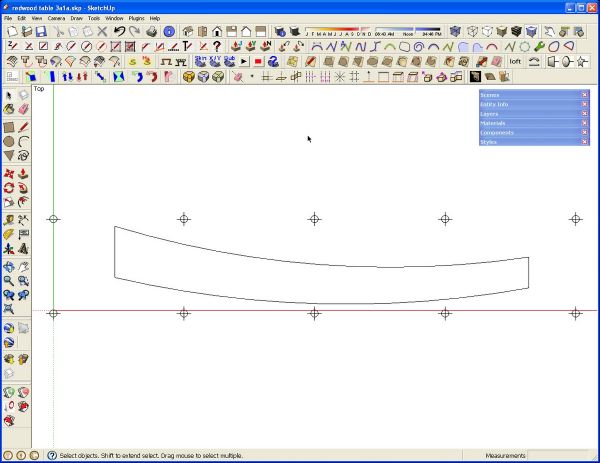
Next I select the first set of four registration marks (first and second vertical pairs) and then right click and choose Zoom Extents from the Context menu. Note, this is different from Zoom Extents in the Camera menu or on the toolbar. Next go to View>Animation and click Add Scene. Select the next set of four registration marks (second and third vertical pairs) and add a scene. Continue on in this way until you have all the sets selected and scenes added.
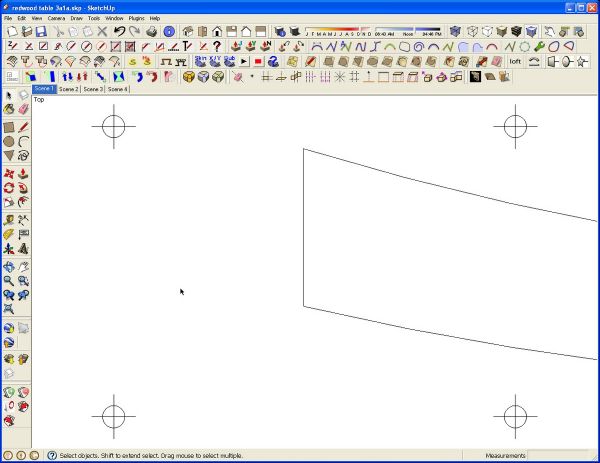
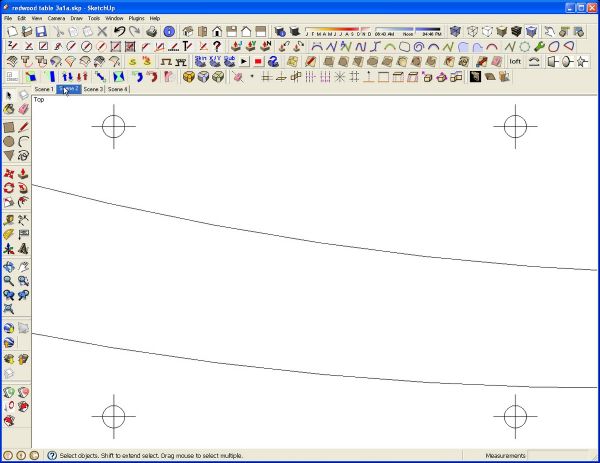
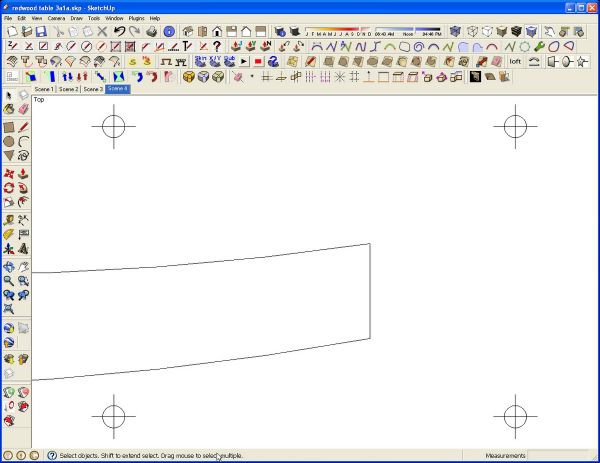
Finally, go to the File menu. Choose Export>2D Graphic. Set the Export Type to PDF and under Options make sure the box for Full Scale (1:1) is ticked. The PDF files can then be printed with no scaling to get the 1:1 templates or pattern. Notice that the registration marks will be consistently located in this method because you are directing how the pattern gets split up into sections.
If you have the pro version of SketchUp, send the file to LayOut and set up the scale of the scenes there to 1:1. When you export to PDF, all the pages will be exported into a single file.
The benefit of the the PDF export is that you can easily share this with others and they aren’t required to have SketchUp on their computer.
Maybe one of these methods will work for you. Give them a try.













Comments
Hi,
I have a problem to print templates. Maybe i am missing somthing. How do you create your registration marks.
Thanks Nollie
Nollie, I just drew a circle with some crossing lines through it. Then I made it a component and copied it to make the array as shown in first several images.
Dave -
I've enjoyed all your posts -- you've definitely elevated my Sketchup work. That said, I am having trouble getting all the scenes to "print" to a single PDF file. I have Sketchup Pro. I created 4 scenes and have gone to the export 2D, within options, set it to 1:1 scale, but it is just exporting the current view -- doesn't seem to be using the scenes and I don't see an option within 2D export to export all the "scenes" ... I'm missing something, aren't I?
-Brady
Hi Brady,
I am getting the same results you get with V8. I don't know why that is but I've edited the text to indicate the current action. I apologize if it caused you problems. Since you have the Pro version, you might find it better to send the drawing to LayOut and make your template there. You can create better looking templates and illustrations in LO, too.
—Dave
Hello again Dave, I just read your blog and I'm a little confused about the "zoom extents" thing. The only one I can find on my Mac is the one in the camera menu/toolbar. What is the "context menu"?
I have been unable to print a 1:1 template on an IMAC. In the document setup drop down box, I uncheck the "fit view to page" box and make the print scale boxes 1" in drawing and 1" in model. I then click on OK and click print in tool bar and then click on print in the drop down box. But the resulting printout is not even close to a 1 to 1 scale. Has anyone been able to print at that scale with a Mac?
@stras, did you adjust the shape of the drawing window as I outlined in this blog post?
Log in or create an account to post a comment.
Sign up Log in