A reader asked me to show how to print a scaled drawing of components in SketchUp on a paper size of 8 1/2 x 11. Except for full-size templates, I must admit not printing scaled drawings. For shop use, and for student documentation, I find that full-size prints do the job. Of course, this often requires printing on multiple tiled pages or on large printers. (Print service shops also are handy for making full-size templates.)
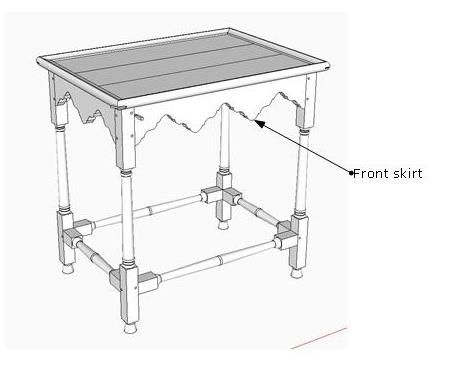
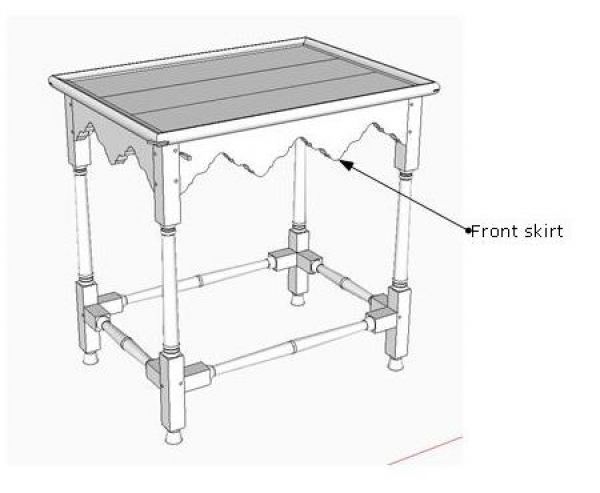
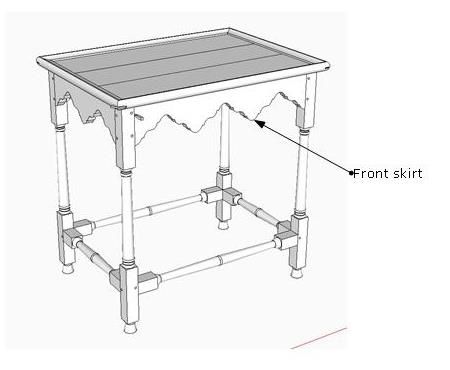
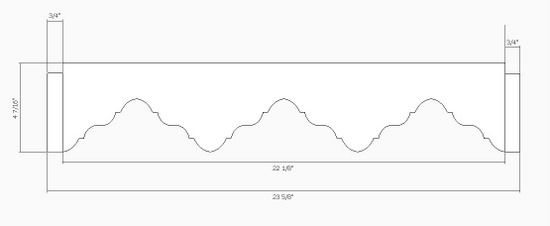
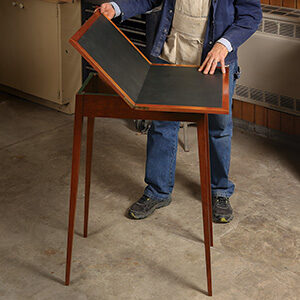
Nevertheless, here is a short method for printing any size component in SketchUp on letter-size paper. I will use the Tea Table scrolled skirt shown below as an example.
Step 1:
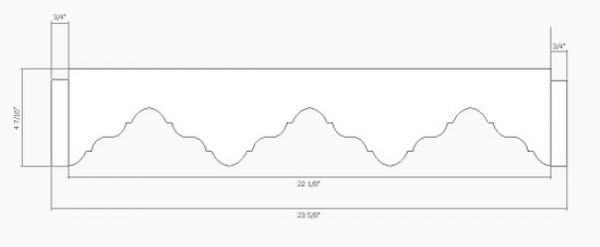
Set up a Scene for the orthographic front view of the component – in this case the skirt. To make orthographic views and Scenes, you must set the Camera to Parallel Projection and a Standard View such as front, right side, top, etc.
In this case, the skirt is about 24-in. long. To fit one-half of this symmetrical component on landscape 11-in. long paper, I can use 1/2 scale.
Don’t confuse this scale with the Scale Tool. We are not scaling the component in SketchUp for which you would use the Scale Tool. We are simply going to set a scale for the print output.
Step 2:
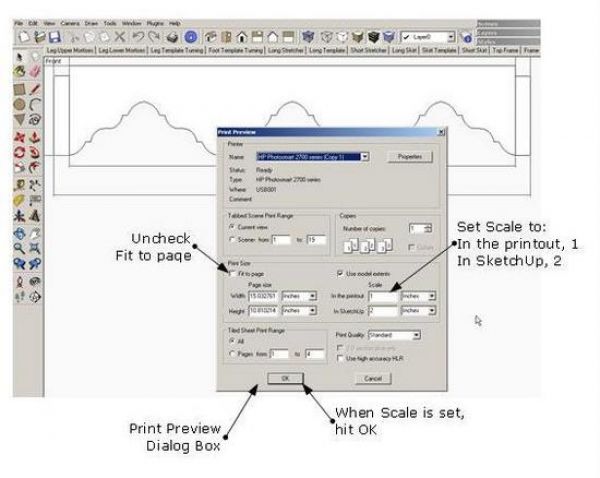
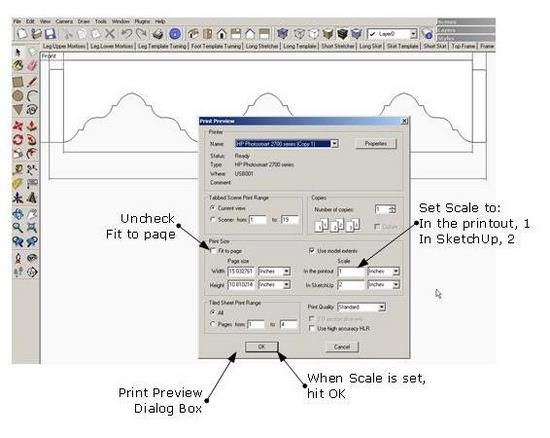
Click on File in the Menu Bar and select Print Preview in the pop-up list. The Print Preview dialog box will appear as shown in the following illustration.
Uncheck the select box called “Fit to page”. In the Scale area of the dialog box, make sure that “In the printout” is set to 1, and “In SketchUp” is set to 2. This will provide the desired one-half scale.
Click on OK when done setting the scale.
Step 3:
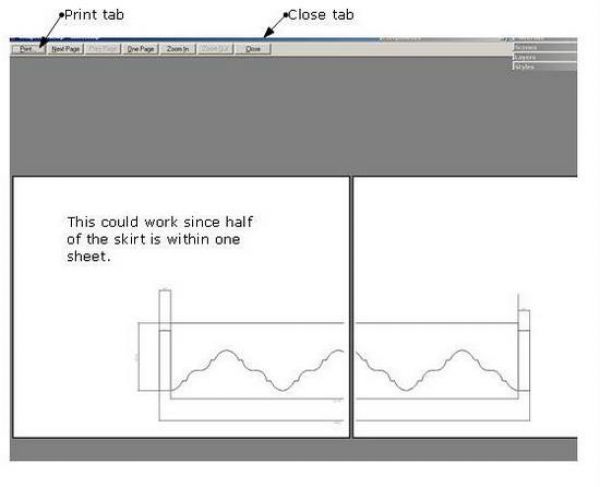
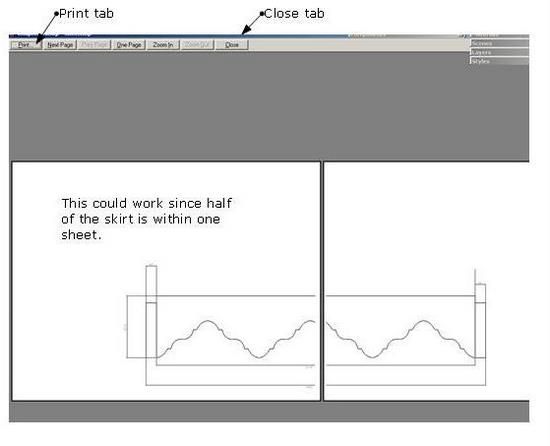
After hitting OK in the previous step, SketchUp will show the preview of the printout on the selected paper size and scaling. In the illustration below, the skirt extends over two pages. If you like the arrangement, click on the Print tab at the top of the screen. Otherwise, you can Close and return to the SketchUp scene without printing.
At this point, you can adjust the Skirt position in the SketchUp screen by panning. (Don’t scroll or you will abort the orthographic set up which is required for a scale printout). After adjusting the skirt position on the screen, you can do another Print preview.
Often, I find the printing full-size and scaled drawings to be an iterative process – that is, shifting the position of the component by panning the screen and checking the result. Without the Print Preview option you could waste quite a bit of paper.
Tim Killen













Comments
This is NOT to scale.
What if I wanted to know the "overall" size of this project and show it to my "wife" for approval. Or customer for approval.
This I think is one of the weaknesses of Sketchup. From what I read in the help menu, a "true" scaled drawing requires the user to step up to Sketchup Pro for $ 500.00
This uses some program called "Layout".
Can you comment on Sketchup Pro ?
Thank You,
Tim's reference to scale is in regard to printing parts of a model to a specific scale, in this example half of full size to aid in making a template.
If I read your comment correctly, you want to show a project's scale relative to other things. You want to show it in context. "How will it fit in the room?" Is that what you mean?
For that you do not need Layout. You need only draw in the context. i.e. walls, windows and doors. You can add people and other furniture to give a sense of scale to a project. The 3D Warehouse has a large number of components you can use for this. Do a search right from the Component's browser for the items you want.
Dave
With apologies to Tim and Dave...
As I see it there are two concepts that are at cross purposes here. The first is "to actual scale" which I understand to mean 1:1. This is used for building prototypes or templates. This you could use to show the wife.
The other is "to scale" meaning any scale necessary...such as 1/4" to the foot. This will show the scale of the proposed object to it's surrounding. As an architect/designer, I find that this is where things fall down for viewers of plans in that they cannot visualize the finished product "on the page". Not everyone has the ability to conceptualize in 3D.
Sketchup can produce both of these types of "scale" in the free version as well as it's bonus...the 3D view...also to scale.
You do not need Layout to provide these features...they are already there. As Dave states, "scale" needs to defined in context.
Best of luck.
As a wise man says on other forums...If all else fails, play dead!
Ken T
Log in or create an account to post a comment.
Sign up Log in