-
How to Cut Sliding Dovetail Joints -
Upgrade Your Jointer with a Segmented Cutterhead -
Fixing Woodworking Mistakes -
How to Apply an Aerosol Finish -
Best Tabletop Finish -
How to Sharpen a Card Scraper -
Dedicated Sled Delivers Perfect Finger Joints -
Five Minute Guide: How to Use a Tablesaw -
Router Jig for Perfectly Aligned Dadoes -
How to Drill Windsor Chair Mortises -
T-Track is a Smart Workbench Accessory -
How to Make a Simple Jig for Offset Knife Hinges -
Buying and Using Trim Routers -
3 Steps to Great Glue-Ups: Sliding Dovetail Joints -
Box Making Tips and Tricks -
Tablesaw Tapering Jig is Safer and Faster -
Five Minute Guide: Glue-Ups
Creating Orthographic View Drawings
comments (0) November 2nd, 2009 in blogs
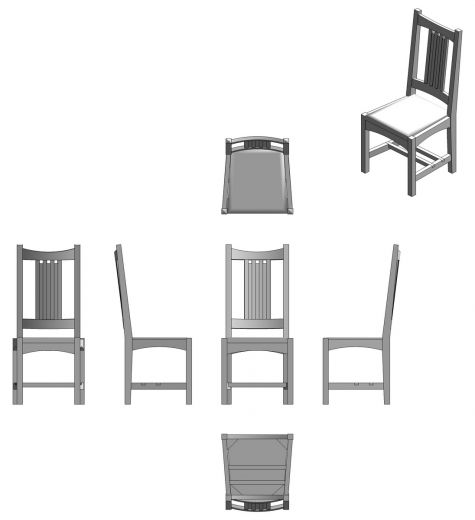
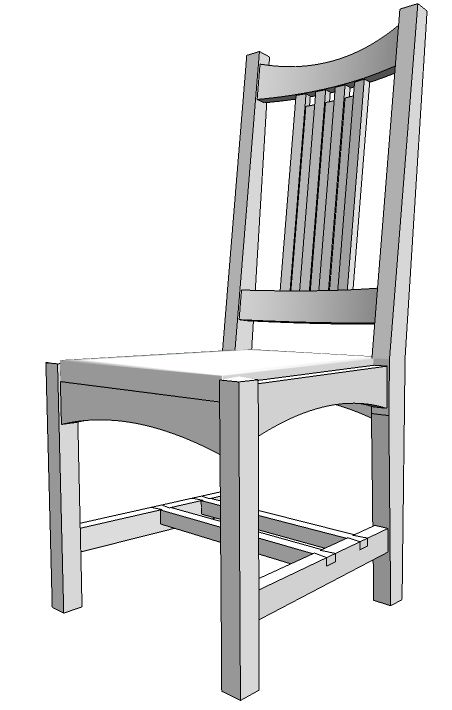
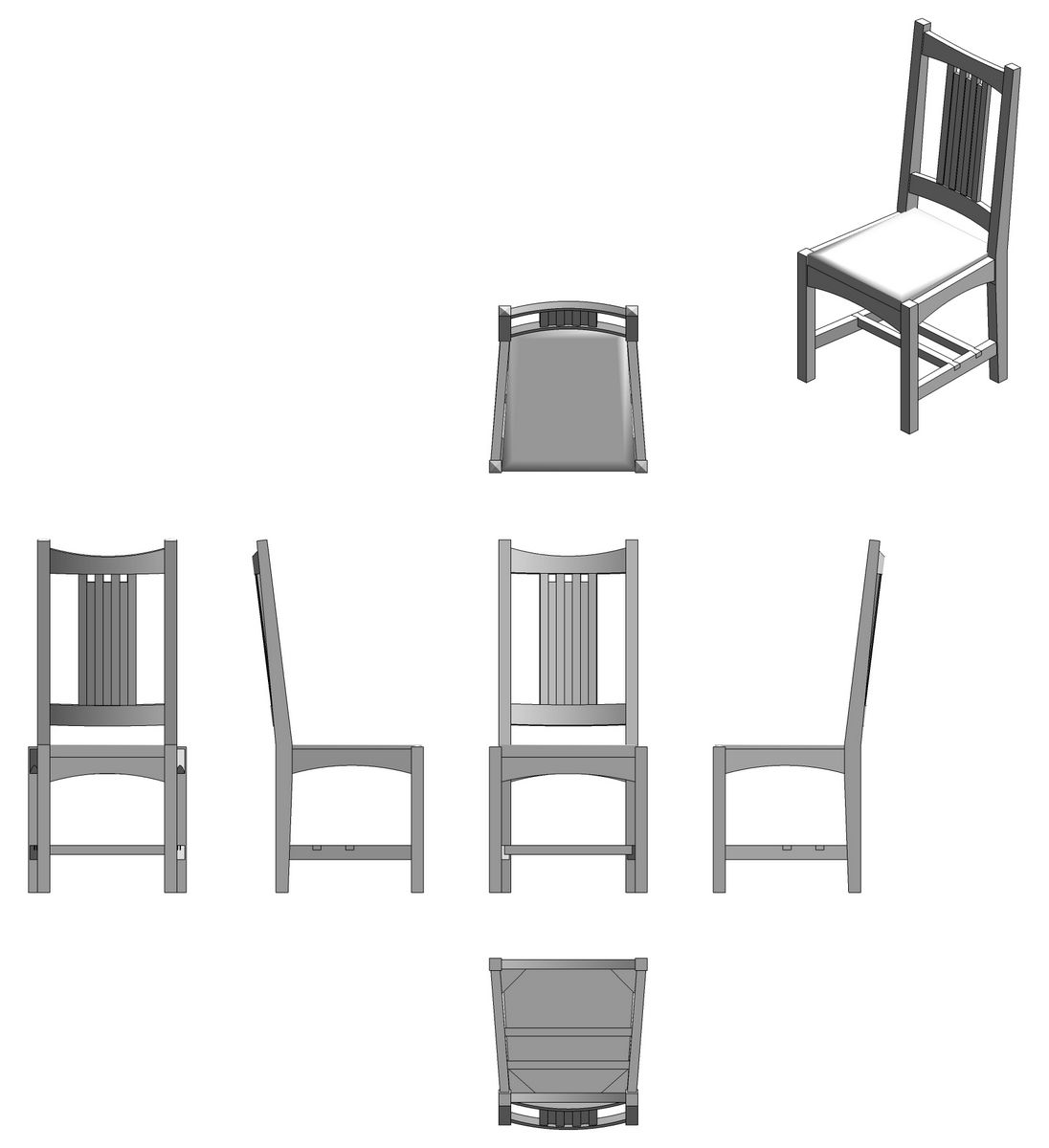
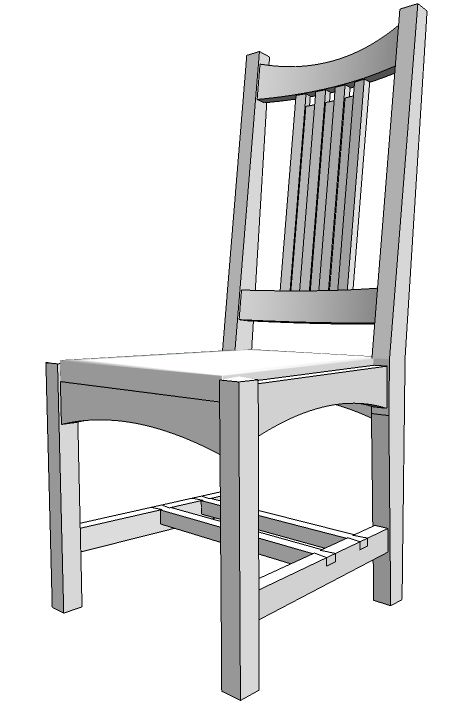
Often it is useful to have the standard orthographic views of your model. There are several ways you can do this in SketchUp. You could create separate scenes using the standard ortho views and export each scene as a different image or send those views to LayOut if you have the pro version. You can even make those views directly in LayOut if you wish.
If you want to have those views in a single image export you could copy the model and then rotate and move the copy to show the desired views. This is simple enough to do and will give you some good practice with the Move and Rotate tools.
If you want to really simplify things, you could use the Make Ortho Views plugin by Jim Foltz. This commercial script turns the work of making the orthographic views into about a 3 second job. The plugin only works on a single component or group but you can deal with that quite easily by making a nested component of the entire model. After selecting the component, you simply click on the Make Ortho Views button on the toolbar and presto! You have the standard orthographic views along with an isometric view of the model. If you don't need some of those views, select them and hit the Delete key. This is a real time saver and for the price, you can't go wrong.

posted in: blogs
Become a Better Woodworker
About Design. Click. Build.
Learn the art and science of designing furniture in SketchUp with Fine Woodworking's official blog. Moderated by a devoted community of woodworkers, we feature step-by-step SketchUp tutorials on designing components, downloads of pre-built 3D models of furniture parts, and news and information about the evolving world of digital furniture design.
Buy the Video
Don't miss Dave Richard's brand-new DVD/video download, The Basics.
Buy the Book
Get Tim Killen's popular eBook, the Google SketchUp Guide for Woodworkers.
Basic SketchUp Tutorials
Learn the basics of building furniture in SketchUp with these classic posts from the Design. Click. Build. blog.
Creating a Project Plan in SketchUp
How I Draw in SketchUp
Axes in SketchUp
The SketchUp Move Tool
The SketchUp Rotate Tool
The SketchUp Scale Tool
Materials, Colors, and Textures
Applying Wood Grain Skins in SketchUp
Easy Dovetail Joints in SketchUp
Digital Project Plans
Download and modify SketchUp files for select projects from Fine Woodworking. View all. Top Sellers: Matt's Monster Workbench New England Pine Cupboard Garden BenchMeet the Authors
|
|
DaveRichardsI am a Biomedical Equipment Technician. I maintain anesthesia and respiratory equipment for the largest medical facility in southeast Minnesota. I...view profile |
|
|
Tim KillenI am retired from Bechtel Corporation after 36 years in Engineering and IT management. I grew up among woodworking machinery in...view profile |
|
|
FineWoodworkingEditors...view profile |


Comments (0)
You must be logged in to post comments. Log in.